Troubleshooting: Fixing Banding, Blur & Color Casts
Ever spent hours on a digital project, only to see it ruined by annoying flaws? It’s a common problem for creators working with complex digital media. Mastering the technical side of your craft is key to making your work shine.
This guide will help you tackle common visual issues. By using strong QA protocols, you can make sure your work looks professional every time. We’ll show you how to fix technical problems like banding, blur, and color casts.
By following these steps, you’ll improve your creative work and control your digital assets better. Let’s explore the technical details needed for perfect image creation.
Key Takeaways
- Learn to spot common visual flaws like banding and blur.
- Use strict QA protocols to keep your work at high standards.
- Apply specific fixes to solve color cast issues.
- Improve your technical skills to enhance your image quality.
- Feel confident in creating clean, polished digital visuals.
Understanding Common AI Image Artifacts
Creating top-notch AI portraits means spotting small flaws that are easy to miss. These technical issues can mess up the look of your images. Knowing how to find these image artifacts is key to getting professional results.
Identifying Banding in Gradients
Color banding is a common problem. It makes smooth gradients look like they’re in steps, not smooth. This usually happens because the software can’t handle all the colors needed for a smooth look.
To fix this, adding gradient noise helps. It adds a bit of grain, making the colors blend better. This trick makes the image look smoother, even if the software can’t do it perfectly.
Recognizing Motion and Focus Blur
Blurry images often come from the model not having enough time to get the pixels right. This is especially true for faces, where sharpness is important.
“The pursuit of perfection in digital imagery is not about avoiding errors, but about understanding the technical constraints of the tools you use.”
Detecting Unnatural Color Casts
When AI gets the white balance wrong, images can look off. Skin tones might seem too yellow, blue, or magenta. This usually happens when the AI misinterprets the lighting in your prompt.
| Artifact Type | Primary Cause | Visual Symptom |
|---|---|---|
| Color Banding | Low Bit-Depth | Visible steps in gradients |
| Motion Blur | Low Sampling | Soft or smeared edges |
| Color Cast | White Balance Error | Unnatural skin tint |
| Gradient Noise | Compression | Grainy texture patterns |
Essential AI Girl Troubleshooting Techniques
Fixing visual issues starts before you render. Knowing your generation software’s settings helps manage your project’s quality. Good ai girl troubleshooting means being careful with your inputs and settings.
Optimizing Prompt Engineering for Clarity
Your image’s quality depends on the model understanding your intent. Use clear, specific language to guide the model. Precision is your best tool to avoid unwanted visual noise or distorted features.
“The quality of your output is directly proportional to the clarity of your input.”
Adjusting Sampling Steps and CFG Scale
Finding the right balance between sampling steps and CFG scale is crucial. Too few sampling steps can make images look unfinished or blurry. Too high a CFG scale can cause colors to be too bright and edges harsh.
Start with moderate values and adjust them slowly. This method helps find the best settings for stable, pleasing results.
Selecting the Right Checkpoint Models
Your choice of checkpoint models is the foundation of your workflow. Different models are trained on various datasets, affecting your characters’ style and consistency. Picking a model that matches your aesthetic is key to avoiding common errors.
Make sure your model is compatible with your software version. Using outdated or wrong files can cause hard-to-fix artifacts. Consistency is key for professional work.
Fixing Banding Through Post-Processing
When your AI images have harsh transitions, post-processing is key. Even top models can struggle with smooth color changes. This leads to visible flaws that ruin your image. With the right digital techniques, you can hide these issues and get a pro look.
Applying Dithering and Noise Injection
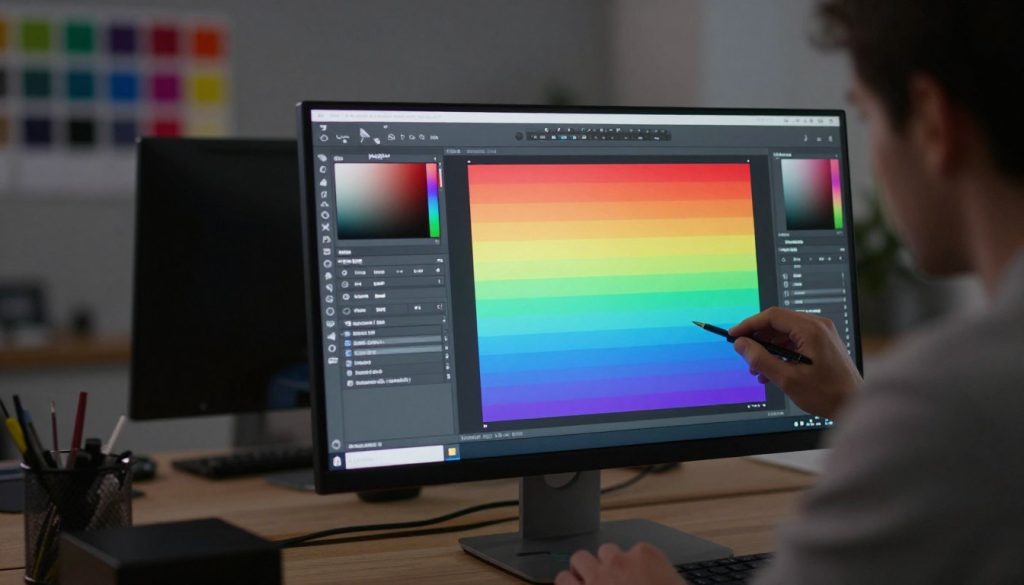
To fight color banding, add a bit of texture to the problem areas. Dithering scatters pixels to soften the lines that cause banding. A touch of gradient noise makes the transition look smooth, not stepped.
Use a high-pass filter or a grain layer in your software. Keep the intensity low to keep details sharp. This tweak can greatly improve your AI art’s quality.
Utilizing 16-bit Color Depth Workflows
Working in 8-bit color depth can lead to banding problems. Switching to 16-bit gives your software more color data. This means smoother gradients that hold up better.
Make sure your workspace is in high-bit depth before editing. This step prevents new issues while you refine your image. It’s essential for artists aiming for top-quality output.
Correcting Gradients in Adobe Photoshop
Adobe Photoshop has tools to fix tough gradients. Use the “Gaussian Blur” filter to soften edges, or the “Dither” option in the Gradient Map tool. These tools give you control over color blending.
| Technique | Primary Benefit | Best Use Case |
|---|---|---|
| Noise Injection | Breaks up rigid lines | Subtle sky gradients |
| 16-bit Depth | Prevents data loss | High-contrast scenes |
| Gaussian Blur | Softens transitions | Background elements |
Eliminating Blur with Upscaling Tools
You can turn soft, low-resolution images into sharp masterpieces with the right tools. AI upscalers help bridge the gap to professional quality. They analyze pixel patterns to fill in missing data without adding noise.
Choosing the Best AI Upscalers
Finding the right software is crucial to keep your original image intact. AI upscalers like Topaz Photo AI or SwinIR are great for different styles. Look for models that keep skin texture and remove the soft look of base renders.
For best results, use a model trained on high-frequency details. Test your image with various algorithms to find the best for fine lines and hair. Keeping consistency is important for your portfolio’s look.
Refining Details with ControlNet Tile
After upscaling, some textures might still feel flat. ControlNet Tile is key for adding realistic details. It breaks your image into segments and re-renders them with higher fidelity.
ControlNet Tile ensures your portrait’s likeness while adding sharpness. It’s great for fixing blurry backgrounds or clothing patterns.
Sharpening Techniques for Soft Portraits
After upscaling and refining, add final touches to make eyes and facial features stand out. Traditional sharpening methods, like the High Pass filter in Photoshop, work well. But be careful not to over-sharpen, as it can create unnatural halos.
Sharpen only where needed, like the iris or hair edges. Use a layer mask to keep skin soft while making eyes sharp. This approach creates a professional look that catches the eye.
| Method | Best For | Detail Level | Processing Speed |
|---|---|---|---|
| ESRGAN | General Art | High | Fast |
| SwinIR | Photorealism | Very High | Moderate |
| ControlNet Tile | Texture Recovery | Extreme | Slow |
| High Pass Filter | Final Polish | Medium | Instant |
Correcting Color Casts and Skin Tones
Mastering color correction is key to making AI renders look great. Even detailed models can have weird colors that take away from realism. By improving your post-processing steps, your characters will look natural and professional.
Adjusting White Balance and Tint
AI often gets the white balance wrong, making images look yellow or blue. Start by using a temperature slider to fix these issues. Small adjustments can make a big difference.
If the image still looks off, try the tint slider. This helps balance magenta and green tones, especially for skin tones. A balanced look is key to matching the scene’s lighting.
Using Selective Color Correction
Not every part of an image needs color correction. Use selective color correction to fix specific areas without changing the whole image. This is great for skin tones that are too bright or dull.
- Use layer masks to isolate the face and hands.
- Apply hue and saturation adjustments to specific color channels.
- Use curves to adjust the brightness of mid-tones independently.
This method keeps the background intact while perfecting the subject. It’s crucial for top-notch digital artistry.
Managing Color Profiles for Web Export
After perfecting your image, make sure it looks right on the web. Wrong color profiles can make colors dull or show color banding. Always export in the sRGB color space for consistent looks on all devices.
Also, watch the bit depth when saving. 8-bit files can cause color banding on gradients. Export at higher quality if you can. Proper post-processing keeps your skin tones looking as you intended.
Advanced QA and Render Fixes
When basic outputs don’t cut it, you need a more detailed approach to image improvement. To get professional results, you must go beyond basic generation to advanced quality assurance. With specific render fixes, you can turn a flawed image into a stunning work of art.
Inpainting to Repair Facial Features
Inpainting is a powerful tool for fixing specific errors. If your subject’s eyes are distorted or their mouth is off-center, you don’t have to start over. Just mask the bad area and generate a new version to replace those pixels.
This method lets you fix ai girl troubleshooting with precision, without changing the rest of the image. Always use a low denoising strength to make the new features blend well with the original skin and lighting.
“Quality is never an accident; it is always the result of high intention, sincere effort, intelligent direction and skillful execution.”
Using Depth Maps for Better Focus
Depth maps help control how your subject and background relate to each other. By creating a grayscale map of your scene, you can blur the background while keeping the subject clear.
This method is key for a professional depth of field effect, like in high-end photography. It helps keep the viewer’s focus on your subject, away from distracting elements.
Layering Multiple Generations for Quality
At times, one generation might have the perfect pose, while another has better lighting or skin detail. You can layer these generations in image editing software, combining the best parts of each.
This QA approach ensures your final image meets your high standards. By mixing the strengths of different seeds, you get a level of detail that’s hard to achieve in one pass.
Workflow Optimization for Consistent Results
Creating a reliable workflow is key to high standards in every project. It makes your creative process predictable. This way, every output meets your exact needs.
A solid render pipeline is the heart of your production. Standardizing settings reduces errors and keeps images consistent.
Establishing a Standardized Render Pipeline
Start by documenting your go-to settings for models and samplers. Make templates for base resolution, sampling steps, and CFG scale for different projects.
This method lets you quickly achieve successful results. Standardization keeps your vision consistent through the whole process.
Managing VRAM and Batch Processing
Managing your VRAM well is crucial for batch tasks. Running out of memory can cause crashes or corrupted files.
Keep an eye on memory use during big batches. You can improve performance by reducing batch sizes or using memory-friendly settings.
Automating Quality Control Checks
A strong qa process catches errors early. Instead of checking every image manually, use scripts to spot quality issues.
Automated render fixes save you time for creative work. By adding these checks, you ensure only top-quality assets make it to your library.
Software and Plugin Recommendations
Building a strong software stack is key to getting pro results in your creative work. The right tools help fix common issues and boost your digital art’s quality. This way, every render meets top standards.
Top Tools for Image Restoration
For image restoration, you need software that smartly fills in missing details and reduces noise. Many artists like standalone apps that can process many images at once. These tools use advanced neural networks to bring back lost textures.
| Tool Name | Primary Use | Ease of Use | Best For |
|---|---|---|---|
| Topaz Photo AI | Upscaling & Denoising | High | Professional Finish |
| Adobe Photoshop | Manual Correction | Medium | Fine Tuning |
| Gigapixel AI | Resolution Boost | High | Large Prints |
Essential Extensions for Stable Diffusion
Working with Stable Diffusion? The right extensions can greatly improve your output. Tools like ControlNet or Adetailer help fix facial details and composition. They bridge the gap between raw images and polished final products.
Choose extensions that automate tasks to save time. This lets you focus more on creativity. A clean, organized interface is essential for a smooth workflow.
Integrating Topaz Photo AI into Your Workflow
Adding Topaz Photo AI to your workflow is a big plus for image restoration. It’s great at spotting and fixing artifacts without losing your work’s essence. Just drag and drop your files for quick improvements in clarity and color.
Many find using this tool last in their Stable Diffusion pipeline works best. It catches small blur or noise that might have been missed before. With this tool, your images are always ready for high-resolution displays.
Common Pitfalls and How to Avoid Them
Working with AI generation can be tricky. You might miss image artifacts that ruin your work. Spotting these mistakes early helps keep your work looking sharp and professional.
Over-processing and Texture Loss
Applying too many filters can cause texture loss. This makes images look unnatural, losing the details you want to show. It’s like losing the texture of skin or fabric.
So, use post-processing tools carefully. It’s better to keep some natural texture than to lose all the details. Try to keep the original look of your subject.
Ignoring Resolution Requirements
Many people forget to check the model’s base resolution. If you start too small and then enlarge, you’ll get pixelation and jagged edges. These are hard to fix and can mess up your image.
Always check the recommended size for your model before starting. Scaling up correctly from the start helps avoid big problems later. This way, your image will look great on any screen.
Misinterpreting Model Training Data
It’s important to know what your model can do. If you expect a model trained on anime to look real, you’ll be disappointed. Not understanding what the model can do leads to bad results.
Read the model creator’s documentation well. Knowing what your model can do helps you set the right expectations. This way, you can avoid making poor images.
Conclusion
Getting professional results in image making needs a focus on technical details. Learning how to fix ai girl issues helps you make consistent, top-notch images every time.
You now know how to use strict qa checks to find mistakes early. These fixes are key to a smooth creative process. They help save time and resources.
Having a set workflow is your best defense against common visual problems. Keeping to this plan makes sure your work looks great, no matter how complex it is.
Keep an eye out for new software and tools like Topaz Photo AI. Being ready to use these updates keeps your work leading in the field. Start using these tips now to make your digital work even better.
FAQ
How can I identify and fix banding in my AI-generated gradients?
Banding shows as “steps” in smooth transitions. It’s often due to low bit-depth pipelines. Switch to 16-bit color depth and use Adobe Photoshop for dithering or noise injection. This breaks up color steps for a professional look.
What are the most effective render fixes for motion blur in portraits?
Motion and focus blur come from wrong sampling steps or low-resolution sources. Fix it by adjusting CFG scale for better prompt adherence. Use AI upscalers like Topaz Photo AI to sharpen and detail your images.
How does prompt engineering improve the clarity of my renders?
Good prompt engineering is key in fixing AI girl issues. It uses specific keywords and constraints to guide models. This reduces artifacts before generation starts.
Why should I use ControlNet Tile during the upscaling process?
ControlNet Tile refines details without adding artifacts. It keeps your portraits sharp and free from “hallucinations” seen in standard upscaling.
What is the best way to correct unnatural skin tones and color casts?
Adjust white balance and tint for a neutral look. Use selective color correction for specific areas, like skin tones. Always manage color profiles for consistency across browsers.
How can inpainting be used for advanced QA and image repair?
Inpainting is vital for fixing facial features or limbs. Mask the problem area and re-generate it with specific prompts. This keeps the rest of the high-quality render intact.
What are the benefits of using depth maps in AI image generation?
Depth maps give you control over focus and background. They ensure your subject is sharp, eliminating distractions. This improves the render’s cinematic quality.
How can I prevent system crashes during intensive batch processing?
Managing VRAM is key for a stable workflow. Use optimized Stable Diffusion extensions and a balanced render pipeline. This avoids crashes during batch processing.
What is the danger of over-processing my AI-generated images?
Over-processing causes texture loss and a “plastic” look. Be careful with sharpening and noise reduction. Keep natural textures and grain for a realistic look.
Why is it important to understand model training data for better renders?
Misunderstanding model training data can lead to poor renders. Align your settings with the model’s training resolution. This avoids pixelation and aliasing artifacts.